
Email: All Mail Access
Warp SoftwaresCommunication
4.2104.00 Reviews
- Version
- 0.0.16
- Installs
- 500.00K
- Age Rating
- Everyone
Screenshots
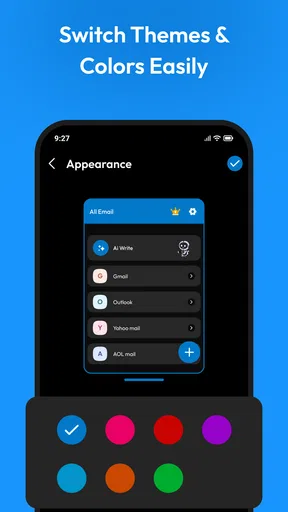
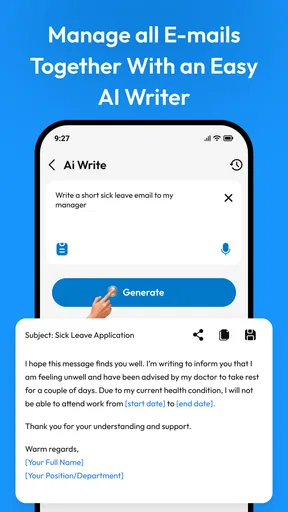
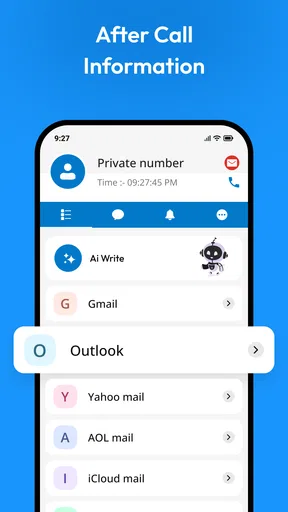
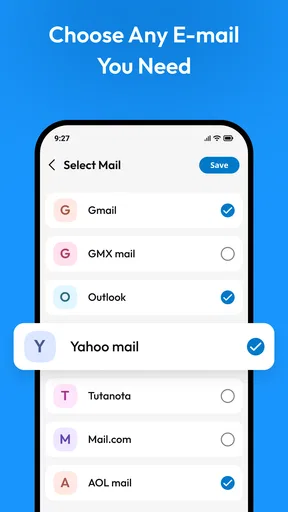
Our Review of Email: All Mail Access
 Analysis by Appyee
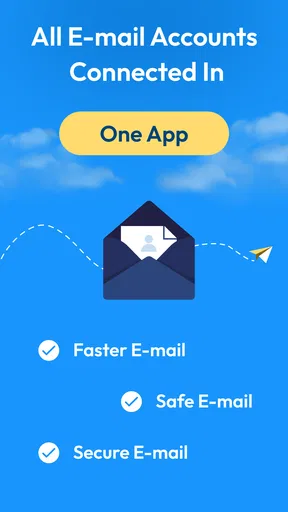
If you are tired of jumping between separate inboxes, Email: All Mail Access is designed around a simple idea: bring your email accounts into one communication app and make daily checking less scattered. I found the appeal strongest when I treated it as a central starting point rather than as a replacement for every specialized email tool. It is free to install, aimed at Everyone, and comes from Warp Softwares. Its store summary also points to an AI mail agent, so the app is clearly trying to go beyond merely displaying messages.
The practical question is whether that convenience fits the way you already handle email. If you manage personal, school, freelance, or work accounts side by side, one combined view can remove a surprising amount of friction. If you need one provider’s full set of advanced tools, careful administrative controls, or a highly mature workflow, a dedicated official client may still suit you better. My experience is that this app is most useful when the problem is scattered attention, not when the problem is a lack of specialist email features.
Getting from installation to a useful inbox
Once I’ve added the accounts I genuinely check, I judge the setup by whether it helps me finish a real task—not by how many inboxes I can gather in one place. I’d start with a routine message, confirm which account received it, and reply from that identity before deciding whether to expand the setup. That gives me a practical baseline for the next question: how to keep a unified inbox useful without letting it blur important boundaries.
What to expect before you start
Email: All Mail Access is a communication app rather than a social network or a general productivity suite. The store short description is simply “Email,” but the more meaningful distinction is its focus on handling multiple accounts in one place. I would approach it with one immediate goal: connect the accounts I actually check every day, then see whether the combined view helps me respond faster and miss fewer messages.
The app has a 4.2 average from around 1.7 thousand ratings, with more than 500 thousand installs. Those figures suggest that it has attracted a substantial early audience, while its release on March 21, 2025, also places it in a relatively young stage of development. The current version is 0.0.16, which matters when setting expectations: the basic direction is clear, but I would not assume that every edge case has been polished to the level of long-established email clients.
There is no charge to install the app. In-app purchases range from $2.99 to $59.99 per item, so I would pay attention to any upgrade screen and decide whether the free experience already solves my problem before committing to anything. That is especially sensible for a first-time user, because the main value should be apparent through the everyday act of bringing accounts together, not through a rushed purchase.
The minimum operating-system requirement is version 11. On a compatible Android or iOS device, the first session should be approached as a short setup exercise rather than a long configuration project. Have the login details for the accounts you want to use available, and begin with two accounts that represent your normal routine. Starting with every address at once can make it harder to tell whether the unified arrangement is genuinely helping.
First setup: connect accounts with a purpose
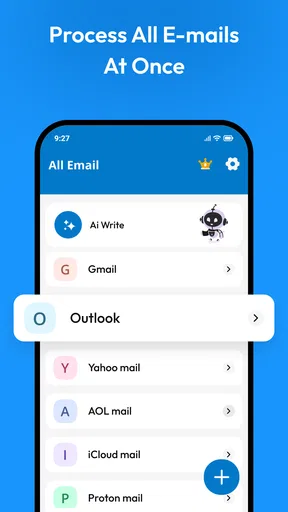
My recommended setup order is simple. Add the account that receives the most important messages first, then add a second account that normally lives in a separate inbox. This gives you an immediate comparison: you can see whether the app reduces the need to switch apps without making the combined stream feel confusing. A personal address and a work address are a useful pair, but only if you are comfortable viewing them together on the same device.
During account setup, read each screen instead of tapping through automatically. Email access is sensitive because inboxes can contain personal conversations, receipts, documents, and password-reset messages. I would only connect accounts that I genuinely want managed inside this app, and I would avoid adding an address belonging to someone else or an account that must remain isolated for professional reasons.
Once the first account appears, spend a minute learning how the app distinguishes one mailbox from another. A unified inbox is convenient, but convenience depends on knowing where a message came from before replying. I make a habit of checking the sender address and account identity whenever a message involves money, work instructions, or private information. That tiny pause is more valuable than any speed gained by having everything on one screen.
A useful early test is to send yourself a harmless message from another account and watch how it appears. This confirms that the account connection is useful in practice, not merely present in a settings screen. It also lets you notice whether the combined presentation makes account boundaries obvious enough for your habits. If you regularly answer several identities, this test is more important than simply checking whether old messages load.
Your first meaningful success
The first success I would look for is not “all accounts connected.” It is completing a small real task without opening separate mail apps. For example, check a new message from your secondary account, identify which address received it, and reply from that same identity. If that sequence feels clear, the app has already earned a place in your routine.
A realistic morning workflow might look like this: I open the app once, scan the combined inbox, deal with anything urgent, and leave low-priority messages for later. A booking confirmation can be recognized quickly, a work request can be answered from the correct account, and a newsletter can wait without forcing me to repeat the same checks in multiple clients. The gain is not dramatic for one message; it appears across many small decisions during the day.
The AI mail agent is the part I would explore after the basic inbox workflow feels comfortable. I would begin with low-risk tasks such as understanding the gist of a long message or helping me organize my thoughts before I write. I would not treat an AI-assisted result as automatically correct, especially for names, dates, attachments, commitments, or sensitive replies. My rule is straightforward: let the assistant reduce the blank-page problem, but keep the final judgment and sending decision with me.
That approach reveals an important trade-off. An AI layer can save time when an email is wordy or poorly organized, yet it can also encourage overconfidence if I stop reading the original message. For a short note, writing my own reply may be faster. For a complicated request, assistance can be helpful, but only when I compare the proposed wording with the source. The feature is most valuable as a second pair of eyes, not as an unattended secretary.
Common confusion when several inboxes meet
The biggest adjustment is understanding that one app does not necessarily mean one identity. A unified inbox can make messages feel like they belong to the same mailbox, even when they do not. Before replying, I check the account used for sending. This is particularly important when a personal address and a professional address are both connected, because an otherwise harmless reply can look careless if it comes from the wrong place.
Another point of confusion is the difference between seeing a message and managing its original account. Email: All Mail Access can provide a shared place to work, but your accounts still have their own histories and expectations. If you archive, delete, or otherwise organize a message, I recommend observing what happens with a low-stakes email first. That small experiment helps you understand the app’s behavior before you apply it to an important conversation.
Notifications can also become mentally noisy when multiple addresses are active. I would not connect every dormant account simply because I can. An old shopping address, a rarely used registration address, and a busy work inbox can create a stream that looks urgent even when it is not. A better arrangement is to start with accounts that need frequent attention, then add another only when the benefit of central access is clear.
Search habits may need adjustment as well. When several accounts are combined, I think in terms of the message I need rather than the mailbox I remember. If the app offers account-specific filtering or search options in your version, use them when looking for a receipt, contract, or conversation. If you cannot immediately tell which account contains a result, slow down before acting. The unified view saves time only when it still lets me locate the original context.
Attachments deserve their own check. When I open a document from a combined inbox, I verify the sender, the receiving account, and the conversation around it before forwarding or saving anything. This is not a criticism unique to this app; it is simply the natural consequence of placing several accounts side by side. Centralization reduces switching, but it also makes careful labeling more important.
Where it fits better than usual alternatives
The usual alternative is to keep using each provider’s official app. That approach is often better when I rely heavily on provider-specific settings, specialized security controls, or a familiar interface that has years of refinement behind it. Separate apps also make account boundaries obvious. The cost is repeated checking, repeated notifications, and a higher chance that I forget an account for half a day.
Email: All Mail Access makes more sense when my priority is a single daily starting point. It can be especially practical for people who alternate between a personal inbox and a side-project address, or for anyone who wants to check several accounts while traveling without opening a collection of apps. The strength is the shared workflow: scan, identify, respond, and move on.
A traditional desktop mail program may still be the better choice for someone managing a large archive, complex folders, or a detailed professional process. Likewise, a person who only uses one account has less to gain from a multi-account design. In that case, the extra layer may not justify changing a routine that already works. I would choose this app because it removes account switching, not because “one app” is automatically superior.
The AI element creates another comparison point. A conventional client may feel more predictable if I want a straightforward inbox with minimal assistance. Here, the possibility of an AI mail agent is appealing when I regularly face long or awkward messages, but it makes careful review part of the workflow. Users who prefer to write every reply manually may appreciate the central inbox while ignoring the assistant; users seeking fully automatic email handling should be more cautious about what they delegate.
Small habits that make the unified workflow safer
I found three habits particularly useful. First, I start each reply by checking the sending identity, even when the conversation looks familiar. Second, I test organizational actions on unimportant messages before applying them to records I may need later. Third, I reserve AI assistance for drafting or summarizing and reread the original message before sending anything consequential. None of these habits takes long, but together they prevent the most likely mistakes caused by centralizing accounts.
I also suggest a weekly cleanup session rather than trying to perfect the inbox every time you open it. During that session, I remove accounts that no longer deserve constant attention, review messages that were easy to overlook in the combined stream, and check whether the app is still reducing work. This is a more realistic test than judging it after one enthusiastic setup session.
For families or shared devices, I would be selective about which accounts are added. A central email app is convenient only when the person using the device should be able to see all connected inboxes. The Everyone age rating describes the app’s broad suitability, but it does not remove the need for sensible account choices. Email privacy depends heavily on who has access to the device and its unlocked applications.
Who should use it, and who should skip it
I would recommend trying Email: All Mail Access if you routinely check multiple email accounts and the constant switching is the part you dislike most. It is also worth considering if you want to experiment with AI-supported email handling while keeping the final decisions in your own hands. The free entry point makes that trial relatively easy, provided your device meets the operating-system requirement and you review any purchase prompts carefully.
I would skip it for now if all your email already works smoothly in one official client, if strict separation between identities is essential, or if your work depends on advanced provider-specific controls. I would also avoid making it the only place for critical communication until I had tested account switching, replying, searching, and message organization with ordinary mail. A young app can be promising without being the perfect foundation for every high-stakes workflow.
For a first-time user, the clearest path is to connect two accounts, complete one real reply from the correct identity, and then spend several days noticing whether the single inbox genuinely reduces effort. If it does, add another account gradually. If it creates more checking and second-guessing than before, return to the official clients that make each mailbox clearer. The goal is a calmer email routine, not a larger collection of features.
My final view is that Email: All Mail Access has a sensible focus and an approachable reason to exist: it puts multiple inboxes within one communication workflow and adds an AI mail agent for users who want help with email tasks. Warp Softwares is presenting it as a free app with optional purchases, and the current version shows that it is still developing. I like it most as a practical hub for people with genuinely divided inboxes, provided they keep checking account identity and reviewing AI-assisted work.
After setup, the next step is not to connect everything blindly. Use the app for one meaningful morning, complete a reply, test a low-risk organization action, and decide whether the reduced switching outweighs the extra care required. If that balance works for you, this can become a convenient daily front door to your email. If your needs center on one provider’s deepest tools or strict mailbox separation, a dedicated alternative remains the wiser choice.
Verdict
Strengths of Email: All Mail Access
- Supports access to multiple email accounts in one place.
- Quickly switches between inboxes without opening separate apps.
- Useful unified search for finding messages across connected accounts.
- Simple interface that is easy for casual users to understand.
- Can reduce the need for several email apps on the same device.
Limitations of Email: All Mail Access
- Requires broad access to email data, which may concern privacy-focused users.
- Account setup can be difficult if two-factor authentication is enabled.
- Features may vary depending on the connected email provider.
- A single app failure could temporarily affect access to several inboxes.
- Notifications may become confusing when many accounts receive messages.
Similar Picks in This Category
View All
Google Messages
Google LLC4.6

Gmail
Google LLC4.1

Google Meet
Google LLC4.4

Google Chrome
Google LLC4.1

WhatsApp Messenger
WhatsApp LLC4.6

Carrier Services
Google LLC4.2
Frequently Asked Questions
What is Email: All Mail Access, and what does it do?
Email: All Mail Access is a mobile email client designed to bring messages from multiple email providers into one convenient inbox. After adding supported accounts, you can read, organize, search, reply to, and compose emails without switching between separate applications. Its usefulness depends on provider compatibility, account permissions, and the features available in the version installed on your Android or iOS device.
Which email accounts can I use with Email: All Mail Access?
The app is intended for users who manage more than one email address, but supported services may vary according to the app version and device platform. Common providers may include Gmail, Outlook, Yahoo Mail, iCloud, and other accounts using standard IMAP or Exchange settings. Before downloading, check the current store description and sign-in requirements, especially if you use a work, school, or custom-domain email account.
Is Email: All Mail Access safe to use with my email accounts?
Email applications require access to sensitive information, including messages, contacts, attachments, and account details, so reviewing permissions and the privacy policy is important. Use the official app-store listing, avoid entering credentials into unofficial copies, and enable two-factor authentication when your provider supports it. You should also confirm whether the app uses secure provider sign-in and how it handles stored account data.
Can I manage several inboxes and receive notifications in one place?
One of the main reasons to use Email: All Mail Access is the possibility of managing multiple accounts from a unified interface. Depending on the installed version, you may be able to view combined messages, switch between individual inboxes, and receive notifications for new mail. Notification behavior can be affected by device battery settings, account synchronization options, and permissions granted during setup.
Does Email: All Mail Access work offline, and is it free?
The app may allow previously synchronized messages to be viewed without an active internet connection, but sending, downloading new mail, and loading remote attachments generally require connectivity. Availability of offline tools can vary by provider and app version. Although the application may be free to download, check for advertisements, optional purchases, subscriptions, or feature restrictions before relying on it as your primary email client.
